Connecting the virtual fiscal registrar and disabling the real fiscal registrar.
A virtual fiscal registrar is necessary in several cases:
- breaking through non-cash payments at workplaces that do not have a fiscal registrar installed;
- view data at the cash register and cash reports at workplaces that do not have a fiscal registrar installed;
- correction of errors related to fiscal payments.
We go to Tinctures - Services and equipment:

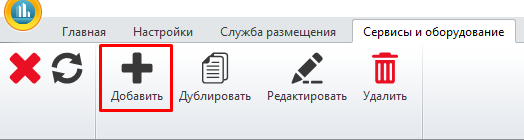
On the top panel, click the "Add" button:
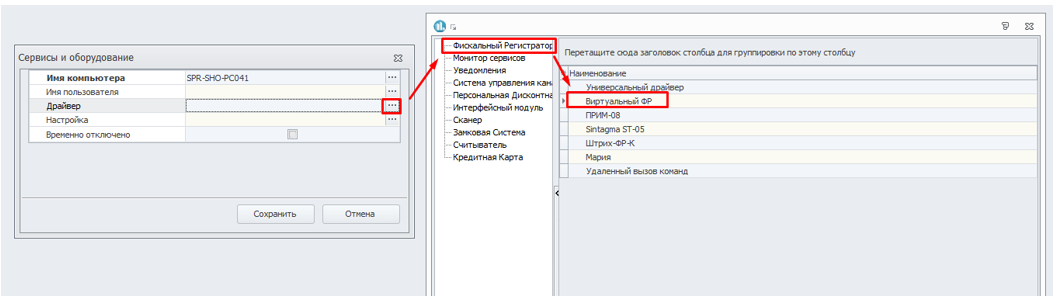
In the "Driver" field, click on the three-dot button and select the Fiscal Registrar - Virtual FR in the window that opens.:
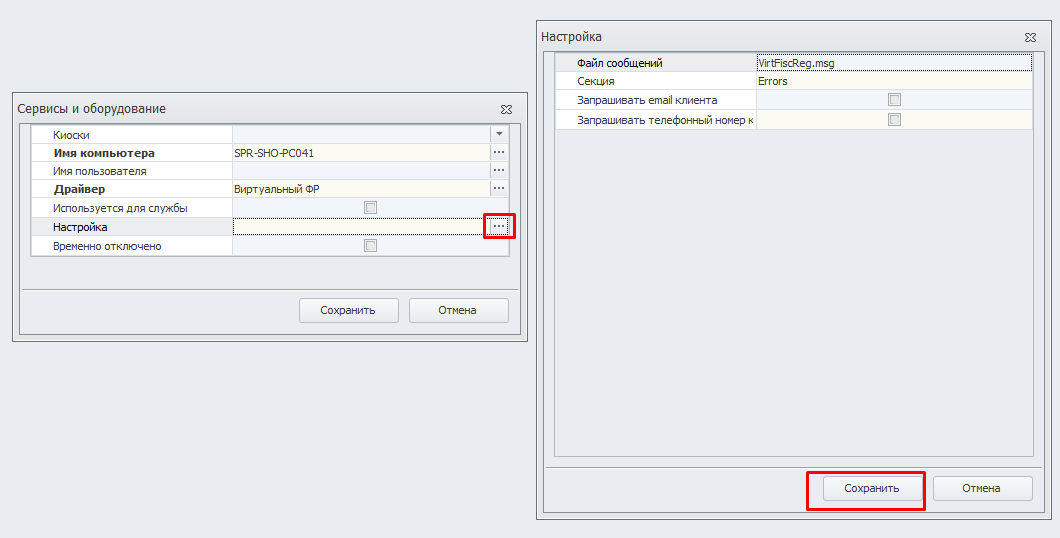
 In the "Settings" field, click on the three-dot button and in the window that opens, click "Save":
Next, select the kiosk that you want to use in connection with the virtual fiscal registrar.:
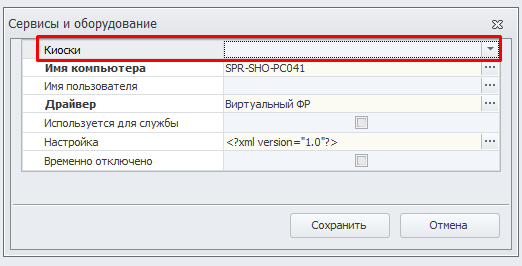
After selecting the kiosk, click the "Save" button.
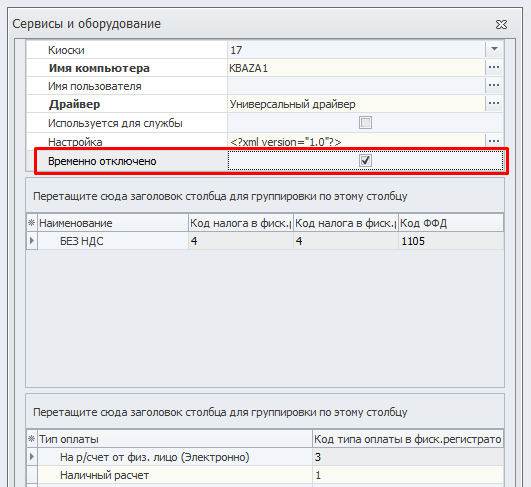
Attention! If a real fiscal registrar is installed at the workplace and you need to connect a virtual one, then check the box "Temporarily disabled" in the real fiscal registrar.: